# Integrations Page
Introduction
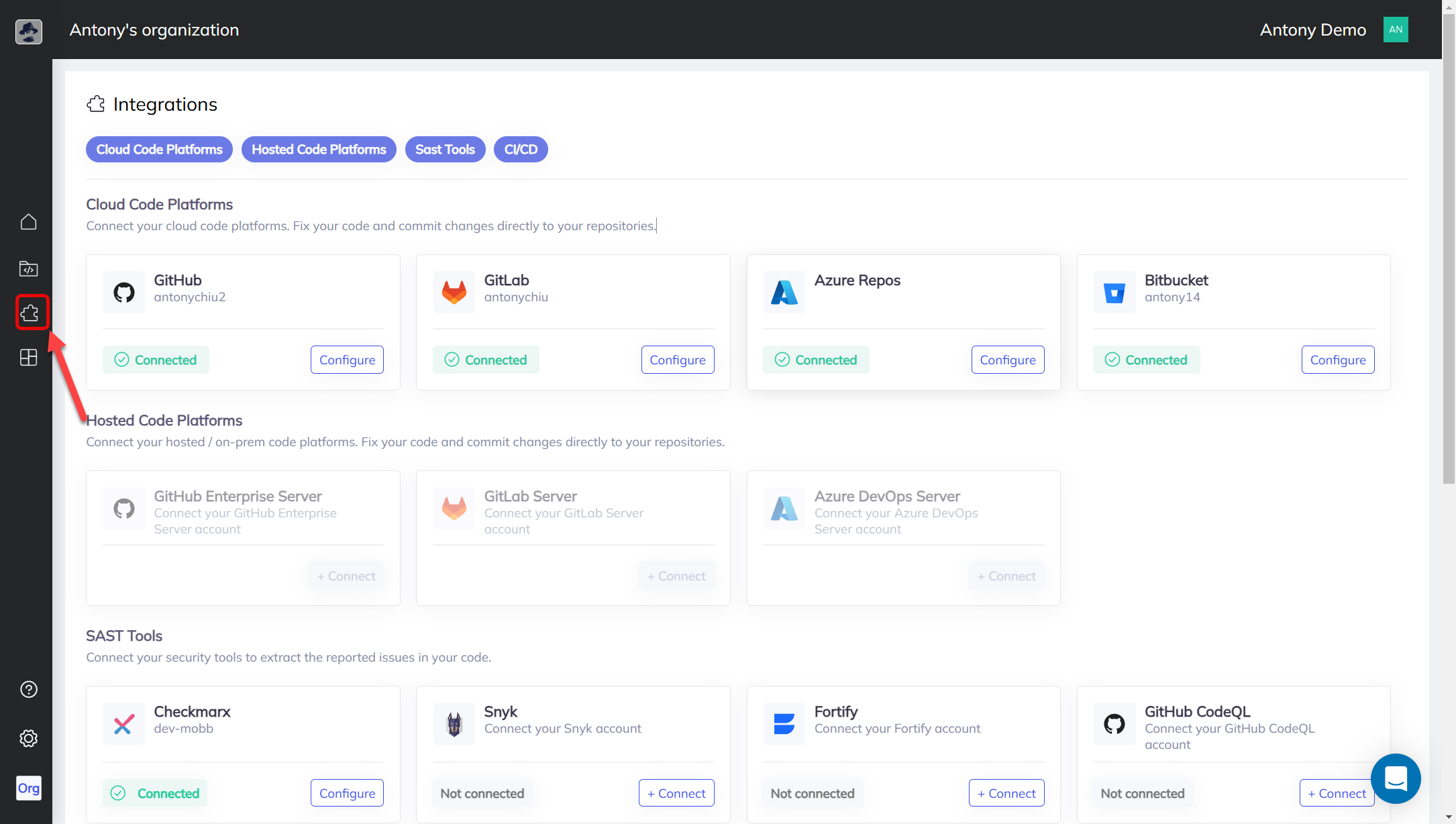
The **Integrations** page is your hub for managing connections between your Mobb organization and external platforms. This feature helps you manage your existing and new integrations across various tools, such as cloud code platforms, hosted code platforms, SAST tools, and CI/CD tools.
Each integration displays its **status** (e.g., connected or disconnected). Users can quickly configure, reconfigure, or switch between connections.
To access the Integrations page, use the icon located at the left navigation panel.
Overview of the Integrations Page
***
### 1. Cloud Code Platforms
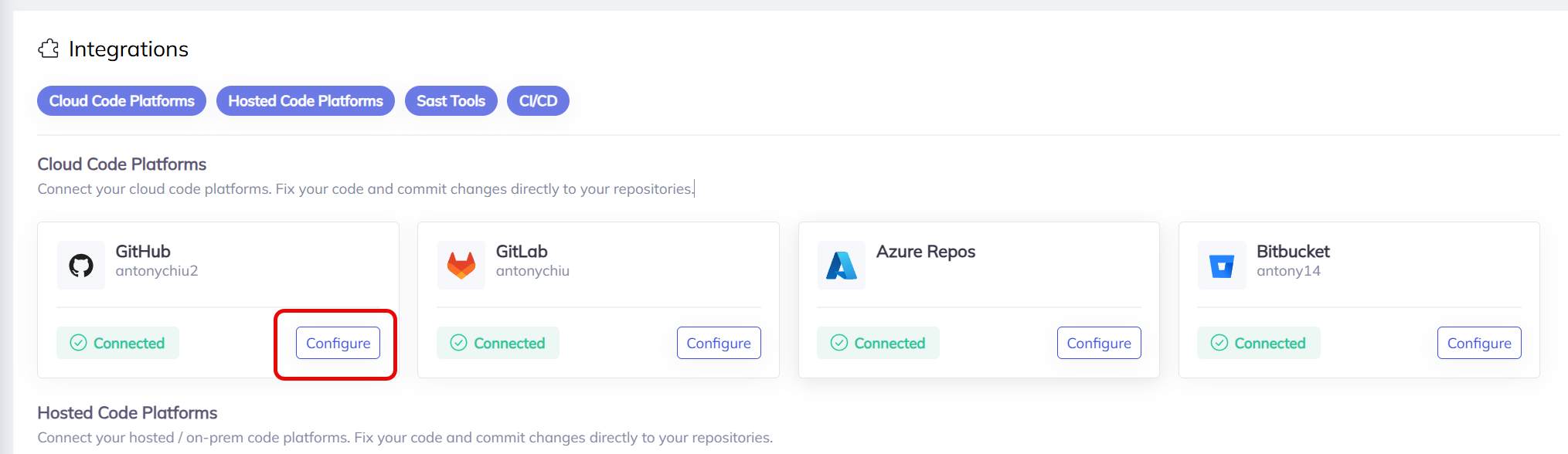
This section allows users to integrate cloud-based source code repositories. It includes platforms that Mobb currently supports, including **GitHub**, **GitLab**, **Azure Repos**, and **Bitbucket**.
* **Features**:
* View the status of connections (e.g., connected/disconnected).
* Click **Configure** to set up or modify integrations.
* Switch between different accounts for a platform.
* **Example**: The screenshots below illustrate a configured **GitHub** connection. To re-configure the connection, use the **Configure** button:
In this example, the **Configure GitHub** screen shows:
* The connected account: `antonychiu2`.
* Options to **Disconnect** or **Switch** to another GitHub account.
***
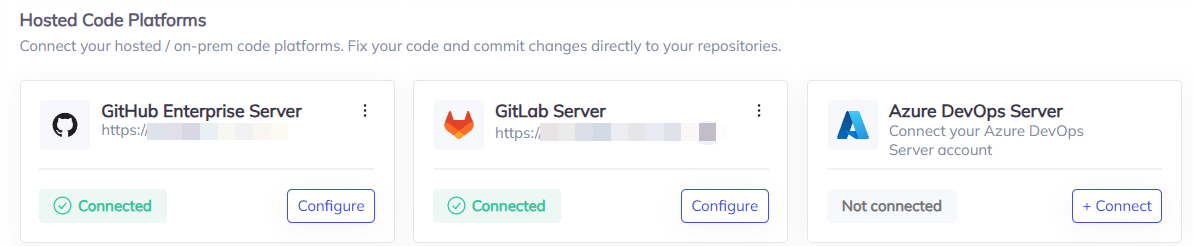
### 2. Hosted Code Platforms
This section will show your connection to the currently supported on-premise repositories:
* GitHub Enterprise Server
* GitLab Server
* Azure DevOps Server
Here are the steps to set up a connection to your hosted code platform:
1. Request a `Broker Token` with the Mobb support team at
2. After a `Broker Token` is obtained, follow the [Mobb broker setup guide](https://docs.mobb.ai/Mobb-user-docs/more-info/mobb-broker).
3. Grant permission to your repository by providing a `SCM Token` (guide coming soon)
4. Load the `SCM Token` into Mobb Portal by clicking on the "Configure" button next to the Hosted Code Platform of your choice. Afterward, provide your SCM token as shown below. (Alternatively, you can use the Mobb CLI to load the SCM token as shown [here](https://docs.mobb.ai/Mobb-user-docs/getting-started/mobb-cli/add-scm-token-mode))

5. Confirm in the Mobb portal that the connection is established.
***
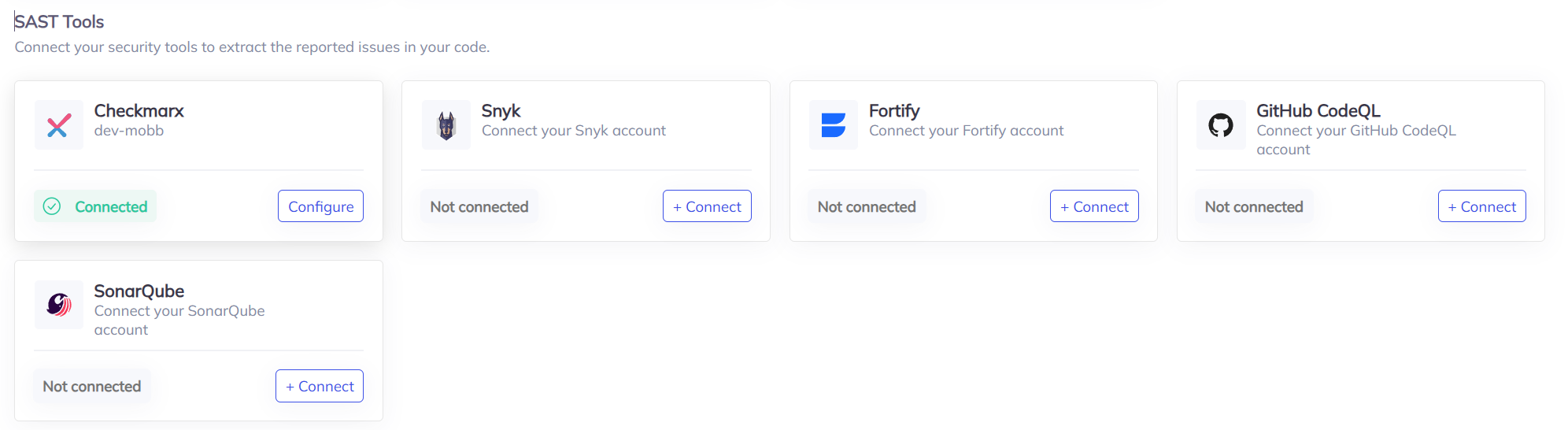
### 3. SAST Tools
The **SAST Tools** section allows users to integrate **Static Application Security Testing** tools. These tools analyze your code for vulnerabilities and report potential security issues.
Supported SAST Tools:
* Checkmarx
* Snyk
* Fortify
* GitHub CodeQL
* SonarQube
***
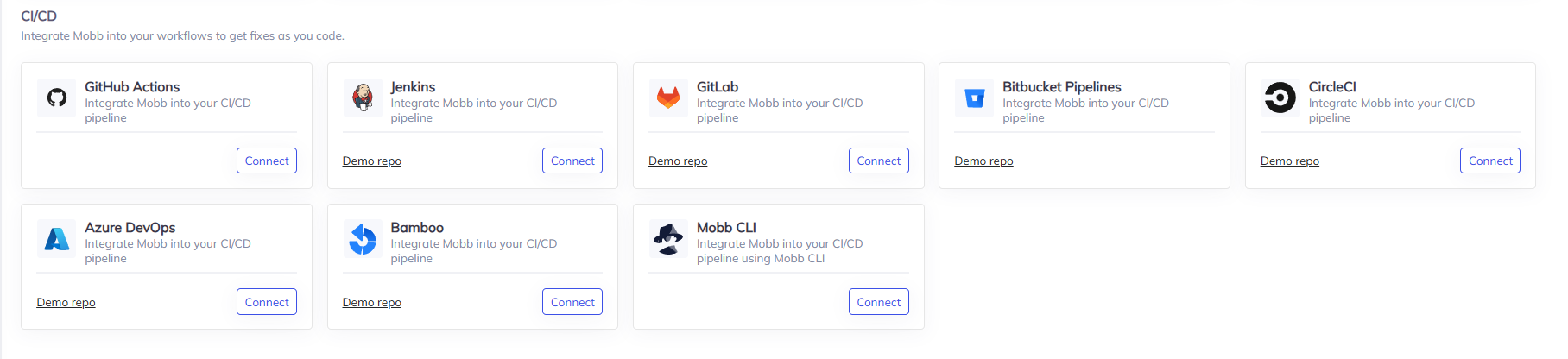
### 4. CI/CD
The **CI/CD** section helps users link CI/CD pipelines for efficient delivery and deployment workflows.
Supported CI/CD tools:
* GitHub Actions
* Jenkins
* GitLab Pipeline
* Bitbucket Pipelines
* CircleCI
* Azure DevOps Pipeline
* Bamboo
* Mobb CLI\\
 icon located at the left navigation panel.
.png?alt=media)