# GitLab Server — PAT

{% hint style="warning" %}
This guide applies **only to on-premises Mobb deployments** where the [Mobb Broker](https://docs.mobb.ai/Mobb-user-docs/more-info/mobb-broker) is used to connect to a self-hosted GitLab Server instance.
{% endhint %}

## Overview

When Mobb connects to an on-premises GitLab Server through the Mobb Broker using **Personal Access Token (PAT)** authentication, it requires a valid GitLab access token to interact with the GitLab API. This guide explains how to generate a new token and update it in Mobb.

## Prerequisites

* Access to a Mobb on-premises deployment with the Mobb Broker configured for GitLab Server
* Permission to create a Personal Access Token or Project Access Token in your GitLab Server instance
* Admin or Owner access to the relevant Mobb organization

## Steps

### Step 1: Generate a New GitLab Access Token

You can use either a **Personal Access Token** or a **Project Access Token**.

#### Option A: Personal Access Token

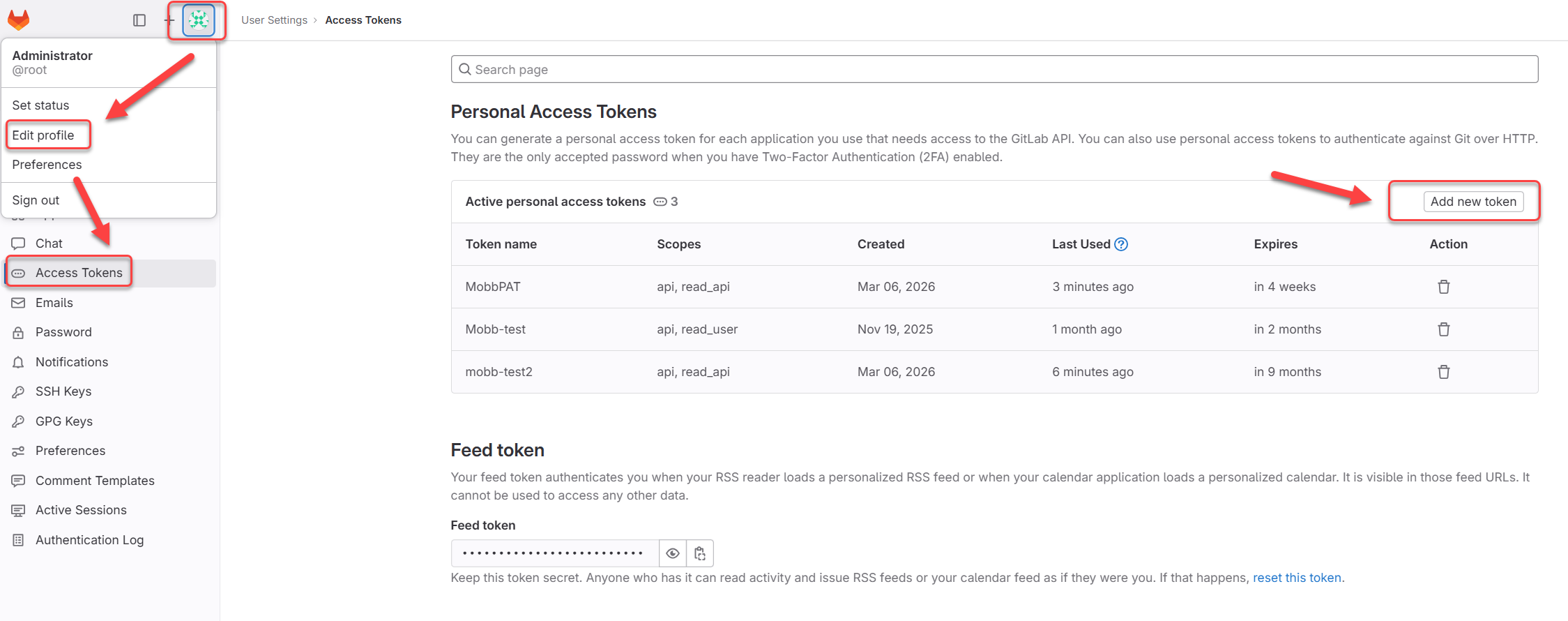
1. In GitLab Server, click your **user icon** in the top-right corner and select **Edit profile**.
2. In the left sidebar, navigate to **Access Tokens**.
3. Click **Add new token**.

<figure><img src="https://2539741639-files.gitbook.io/~/files/v0/b/gitbook-x-prod.appspot.com/o/spaces%2F8WF4UBNkXMHG7Dz0RXI7%2Fuploads%2Fgit-blob-620ed3c44b0020ddb743bdbe878d88352d71e9a9%2F2026-03-06_11-22-45.PNG?alt=media" alt="GitLab Server Personal Access Tokens page"><figcaption><p>GitLab Server — Navigate to User Settings → Access Tokens and click Add new token</p></figcaption></figure>

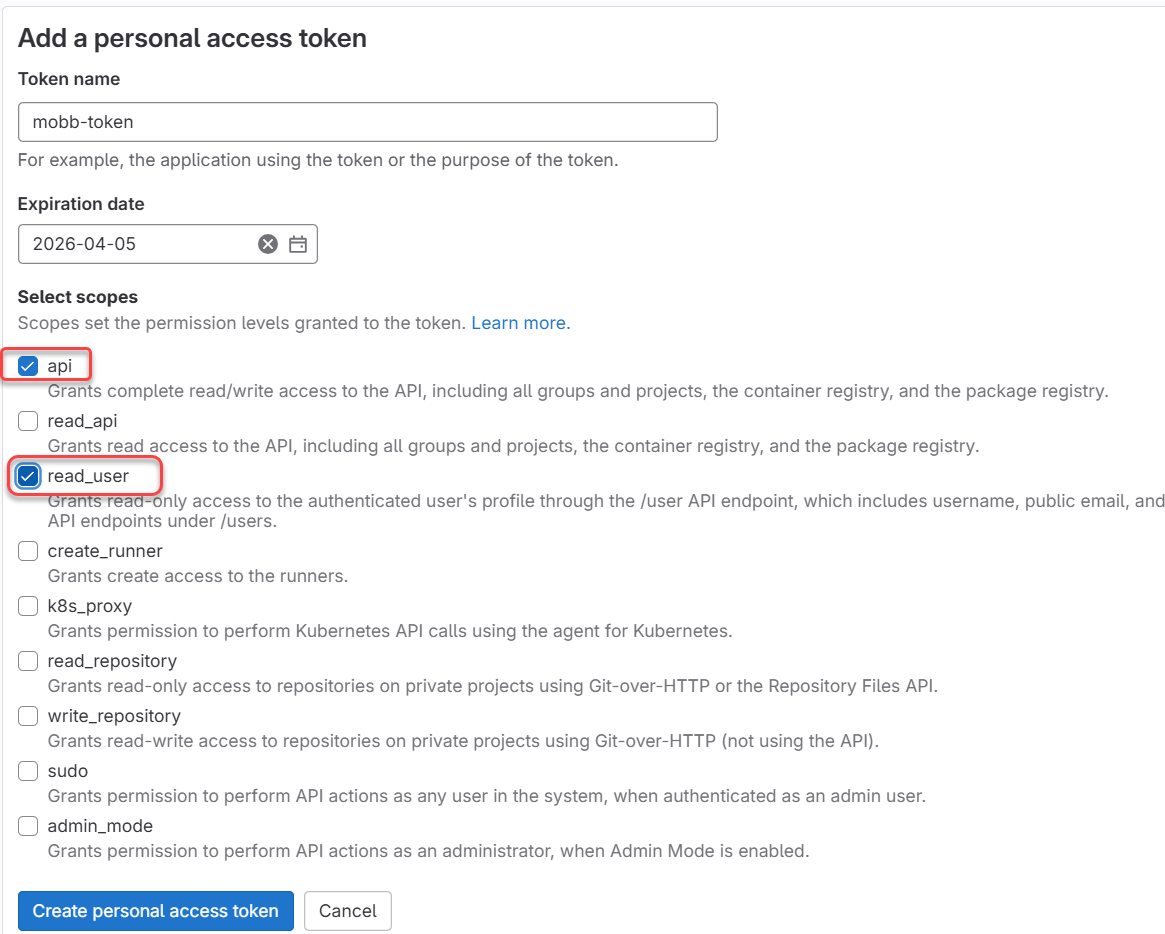
4. Give the token a name and set an expiration date.
5. Enable the following scopes:

   * `api`
   * `read_user`

   <figure><img src="https://2539741639-files.gitbook.io/~/files/v0/b/gitbook-x-prod.appspot.com/o/spaces%2F8WF4UBNkXMHG7Dz0RXI7%2Fuploads%2Fgit-blob-1b486ad8743d42694caff1446db31d93c54a25d3%2F2026-03-06_11-30-50.PNG?alt=media" alt="GitLab Personal Access Token scope selection"><figcaption><p>Select the <code>api</code> and <code>read_user</code> scopes</p></figcaption></figure>
6. Click **Create personal access token** and copy the generated token value.

#### Option B: Project Access Token

1. In GitLab Server, navigate to your project.
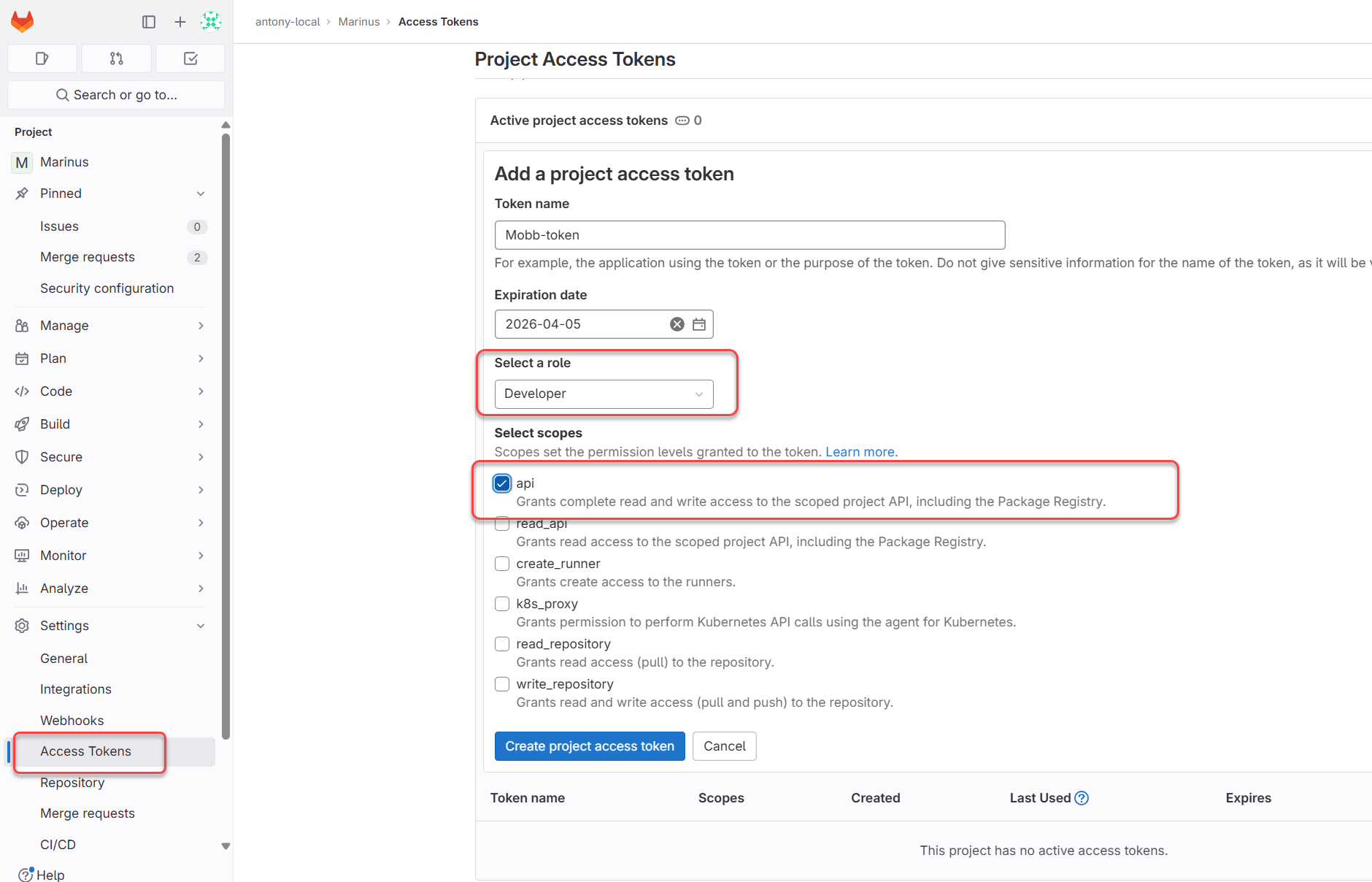
2. Go to **Settings** → **Access Tokens**.
3. Click **Add new token**.
4. Give the token a name and set an expiration date.
5. Set the role to **Developer** or higher.
6. Enable the following scope:

   * `api`

   <figure><img src="https://2539741639-files.gitbook.io/~/files/v0/b/gitbook-x-prod.appspot.com/o/spaces%2F8WF4UBNkXMHG7Dz0RXI7%2Fuploads%2Fgit-blob-8502389ffab26ac3a4b7c7a3f6a804ff65a27fe4%2F2026-03-06_11-14-55.PNG?alt=media" alt="GitLab Project Access Token settings"><figcaption><p>Set the role to Developer and select the <code>api</code> scope</p></figcaption></figure>
7. Click **Create project access token** and copy the generated token value.

### Step 2: Update the Access Token in Mobb

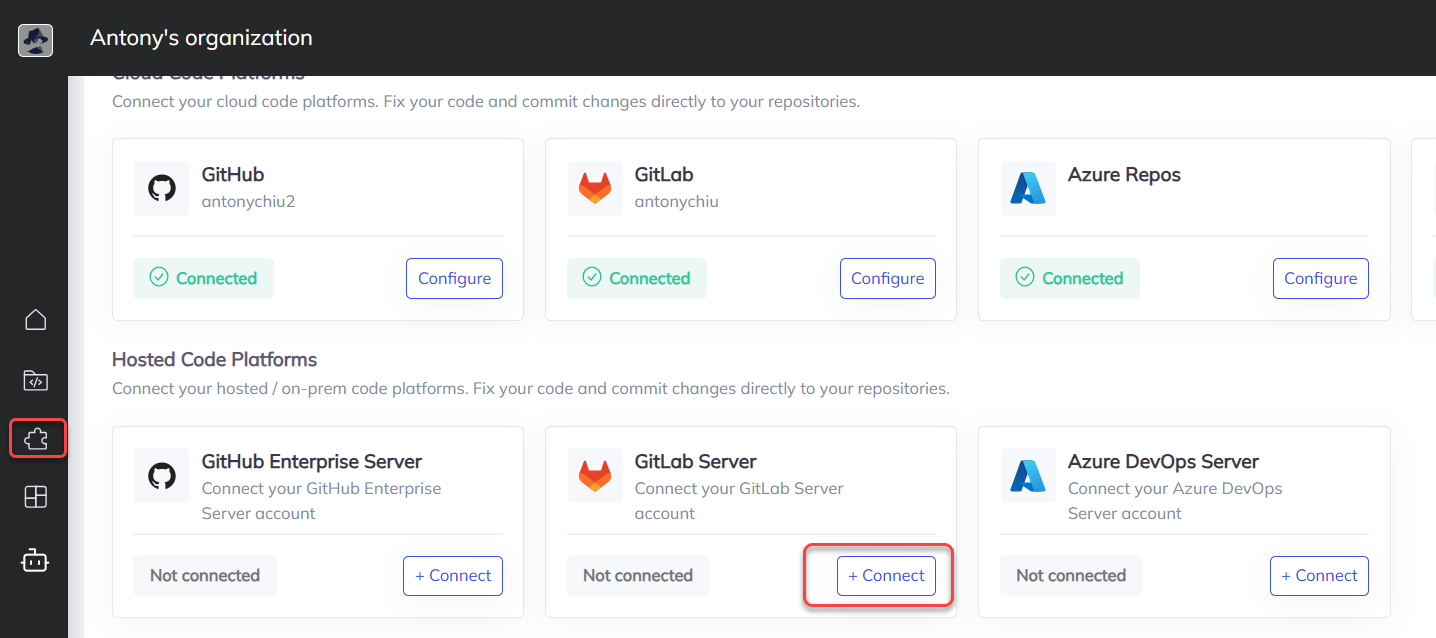
1. In the Mobb interface, click the **Integrations** icon in the left sidebar.
2. Locate **GitLab Server** under the "Hosted Code Platforms" section and click **+ Connect** or **Configure**.

   <figure><img src="https://2539741639-files.gitbook.io/~/files/v0/b/gitbook-x-prod.appspot.com/o/spaces%2F8WF4UBNkXMHG7Dz0RXI7%2Fuploads%2Fgit-blob-1f59750c0a8b57e4c5ad490eb58e1371d1fe203b%2F2026-03-06_11-36-18.PNG?alt=media" alt="Mobb Integrations page"><figcaption><p>Locate GitLab Server and click Configure</p></figcaption></figure>
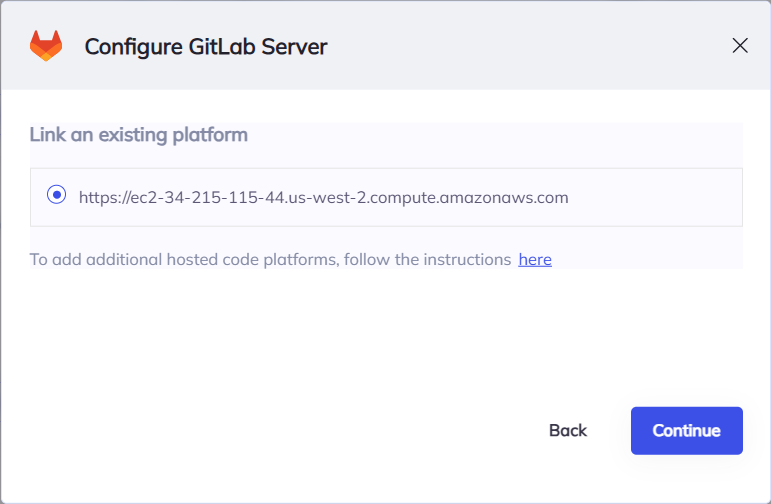
3. Select your **GitLab Server URL** from the list and click **Continue**.

   <figure><img src="https://2539741639-files.gitbook.io/~/files/v0/b/gitbook-x-prod.appspot.com/o/spaces%2F8WF4UBNkXMHG7Dz0RXI7%2Fuploads%2Fgit-blob-06d2a3d59b92c7e56e3cb0cbddfe1424bd0a793f%2F2026-03-06_11-16-58.PNG?alt=media" alt="GitLab Server URL selection"><figcaption><p>Select your GitLab Server URL</p></figcaption></figure>
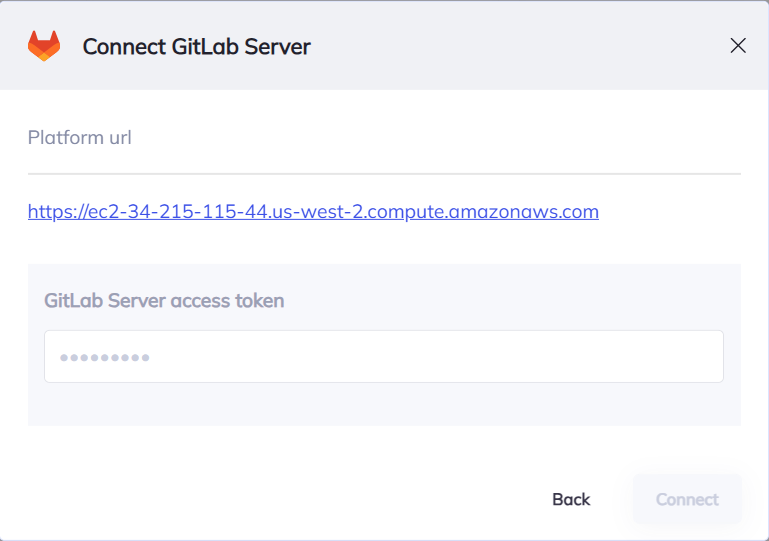
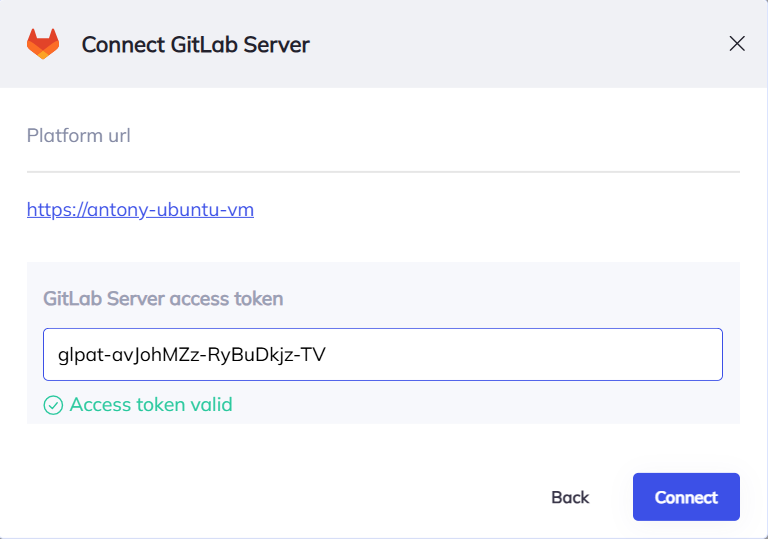
4. In the next screen, enter your new GitLab Server access token (either Personal Access Token or Project Access Token) and complete the configuration.

   <figure><img src="https://2539741639-files.gitbook.io/~/files/v0/b/gitbook-x-prod.appspot.com/o/spaces%2F8WF4UBNkXMHG7Dz0RXI7%2Fuploads%2Fgit-blob-6504cf0c8294c7e015947a8671e11cc71920370b%2F2026-03-06_11-17-30.PNG?alt=media" alt="Enter GitLab access token"><figcaption><p>Paste your GitLab access token and complete setup</p></figcaption></figure>

## Verification

After updating the access token, verify that Mobb can successfully connect to your GitLab Server:

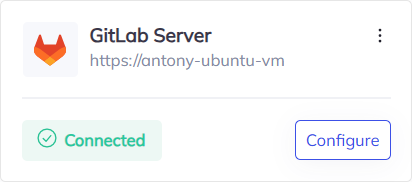
1. On the configuration screen, you should see a **"Connected"** status indicating successful authentication.

   <figure><img src="https://2539741639-files.gitbook.io/~/files/v0/b/gitbook-x-prod.appspot.com/o/spaces%2F8WF4UBNkXMHG7Dz0RXI7%2Fuploads%2Fgit-blob-ddad81e3d62de4151534bdcdd152002f2487643a%2F2026-03-06_11-19-22.PNG?alt=media" alt="GitLab Server connection successful"><figcaption><p>GitLab Server shows as Connected</p></figcaption></figure>
2. You can also verify by returning to the **Integrations** page—the GitLab Server integration should display a **Connected** checkmark.

   <figure><img src="https://2539741639-files.gitbook.io/~/files/v0/b/gitbook-x-prod.appspot.com/o/spaces%2F8WF4UBNkXMHG7Dz0RXI7%2Fuploads%2Fgit-blob-97ab647ab6e4dc9b954dfad55248f9706c64796d%2F2026-03-06_11-19-45.PNG?alt=media" alt="Integrations page with GitLab Server connected"><figcaption><p>Integrations page confirms GitLab Server is connected</p></figcaption></figure>

## Troubleshooting

If you see connection errors, verify that:

* The access token has not expired
* The token has the correct scopes (`api` and `read_user`)
* Your GitLab Server is reachable from the Mobb Broker network

### Verify Mobb Broker Connectivity

To verify that the Mobb Broker can reach your GitLab Server, you can use the [Mobb REST API to check SCM connection status](https://apidocs.mobb.ai/mobb-rest-api#tag/broker-management/get/api/rest/checkscmconnectionstatus):

```bash
GET /api/rest/checkscmconnectionstatus
```

This endpoint will return the current connection status of your Mobb Broker to the SCM. If the broker cannot reach GitLab Server, reach out to us via <support@mobb.ai>.